
AVIF vs GIF: Which Animated Format Should You Use for Screen Captures?
GIF Recordings: The Universal Classic
The GIF has been the default format for short, looping screen recordings for decades. Here's why it is still popular:
1. Universal Compatibility: GIFs work almost everywhere, including email clients, chat apps, documentation tools, issue trackers, and social media. If you need a recording to play wherever it is pasted, GIF is the safest choice.
2. Simple Sharing: A GIF behaves like an image. It can be dragged, dropped, embedded, and previewed without a video player or special handling.
3. Looping by Default: GIFs loop automatically, which makes them well-suited to short demos, bug reports, and feature highlights.
4. Known Limitations: GIFs are limited to a 256 color palette per frame and use an old compression method. Screen recordings with gradients, photos, or lots of motion can look banded or grainy and produce surprisingly large files.
AVIF Recordings: The Modern Alternative
AVIF is a modern image format based on the AV1 video codec. It supports animation, and it is designed to deliver much better quality at much smaller sizes. Here's why you might choose it:
1. Much Smaller Files: AVIF uses advanced compression, so an animated AVIF is often a fraction of the size of the equivalent GIF. Smaller files load faster, use less bandwidth, and are easier to store and share.
2. Better Image Quality: AVIF supports full color rather than a 256 color palette, so gradients, shadows, and photographic content stay smooth. Text and UI details remain crisp at lower file sizes.
3. Longer Recordings Become Practical: Because AVIF files are so much smaller, you can record longer clips or use higher resolutions and frame rates without producing an unmanageably large file.
4. Transparency and Wide Color: AVIF supports alpha transparency and high bit depth color, which GIF cannot match.
5. Compatibility Is Good, but Not Universal: AVIF is supported by current versions of Chrome, Edge, Firefox, Safari, and Opera. Some older browsers, email clients, and apps that accept GIFs may not display animated AVIF files yet.
Comparing AVIF and GIF at a Glance
| GIF | AVIF | |
|---|---|---|
| Colors | 256 per frame | Millions |
| File size | Large | Small |
| Quality | Banding and dithering | Smooth and sharp |
| Transparency | 1-bit | Full alpha |
| Compatibility | Almost everywhere | All modern browsers, limited in some apps |
| Best for | Maximum reach | Quality and small file size |
Choosing the Right Format
1. Where Will It Be Shown? If you are embedding the recording on a website or in modern documentation, AVIF is a great choice. If it is going into an email or an older app, GIF is safer.
2. How Large Can the File Be? If upload limits, page weight, or load time matter, AVIF will save you significant space.
3. How Important Is Quality? For recordings with gradients, small text, or detailed interfaces, AVIF will look noticeably better.
4. Do You Need Both? You can record once and save in whichever format suits the destination. Use AVIF where you control the page and GIF where you need maximum compatibility.
Saving AVIF Recordings with Chrome Capture
Chrome Capture now supports AVIF. After you record your screen, open the editor to preview and make any changes, then click the "Save" icon. In the save dialog, set the "Save recording as" option to "AVIF" and click "Save". Choose "GIF" instead whenever you need the widest compatibility.
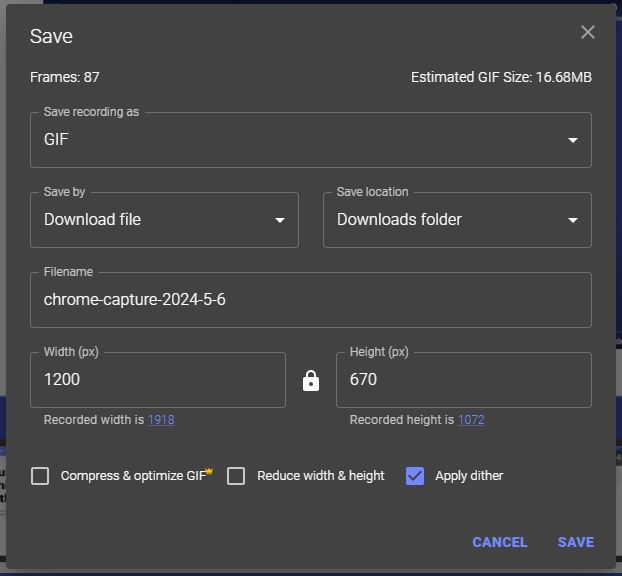
New to recording? Follow our guide to recording GIFs and then try saving the same recording as AVIF to compare the file sizes yourself.
Conclusion
GIF remains the most compatible format for animated screen captures, while AVIF offers far better quality at a much smaller size. For anything you publish on the modern web, AVIF is usually the better option, and with Chrome Capture you can export either format from the same recording.